


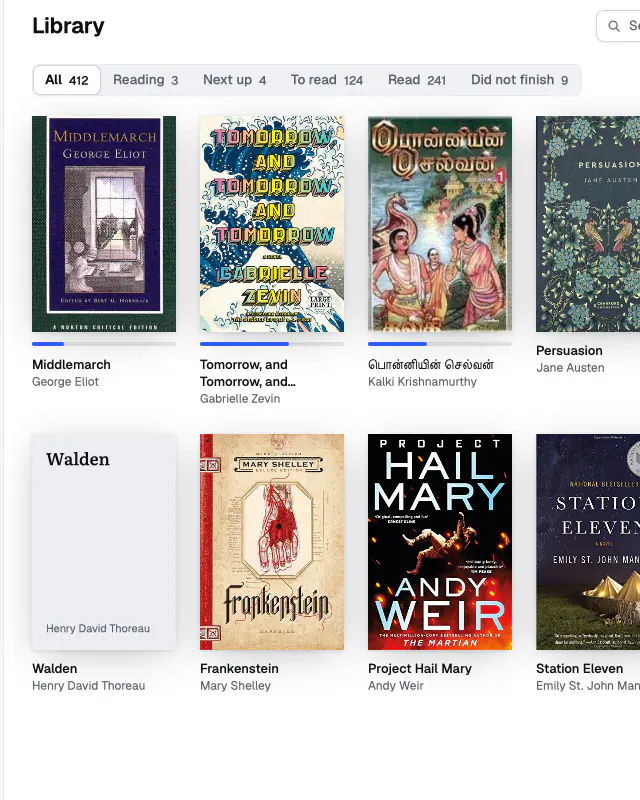
Show your books as covers or as a list. Filter by status, shelf, author, series, language, or format, and the search finds titles, authors, and series while you type.

For Mac and Linux
An ebook library and reader that syncs with your Kobo.
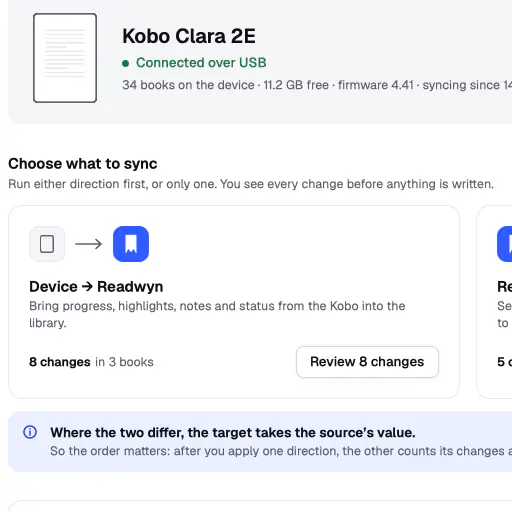
Readwyn imports your calibre library in one step and opens EPUB, MOBI, AZW3, and PDF in its own reader. Plug in your Kobo to sync your highlights, notes, and progress both ways.
What Readwyn does

The library
Your ebooks and comics in one place, brought over from calibre or added as files.

The reader
Readwyn’s own reader, with highlights, notes, and a dictionary that works offline.
Kobo and other computers
Sync with your Kobo and with Goodreads, and open your libraries from other computers and reader apps.
Contents
The library
The reader
Kobo and other computers
The library
Browse and filter your books


Coming from calibre
Choose your calibre library and Readwyn imports it once, with covers, files, ratings, reviews, identifiers, and your Kobo and Goodreads data. Before it starts, it tells you how many books it found and about how long the import will take. The import runs in the background, so you can keep reading while the books arrive.


EPUB, MOBI, AZW3, and PDF
Click “Add books” or drop the files on the window. Readwyn converts MOBI, AZW3, and PDF files to EPUB 3 when you add them, so they open in its reader, and it keeps the original file unchanged. A book with DRM is not converted.

Comics and manga
Comics, manga, and graphic novels go in the same library as your ebooks, as CBZ, CB7, or CBT files. Read them a page at a time or as two-page spreads, and manga reads right to left.


Walk through your library
Step into a 3D library with your own books on the shelves. Walk around, take a book out, and carry it to a reading table, where it opens in the reader. The room grows with your library, from a reading nook to a grand hall.


The reader
Books laid out as pages
In a wide window you read two pages side by side, with running heads, page numbers, and hyphenation for English, set in Literata or another font you pick. “Continue reading” opens the book where you stopped, and the book screen shows how long the rest will take at your reading speed.

Private reading
Choose “Read privately” and Readwyn saves nothing for that session: no progress, no dates, no time read, and nothing goes to Goodreads.


Highlights and notes
Drag across words to highlight them in one of four colours, or add a note. The Notebook keeps every highlight in reading order, grouped by chapter. Highlights from your Kobo come in with a sync.


Look up a word
Press and hold a word to see what it means, from the macOS Dictionary or from Wiktionary, which Readwyn downloads so it works offline. The speaker button says the word aloud.

My Words
Save a word to My Words from the lookup. The Notebook lists your saved words, each with the book you found it in.
Find in the book
Search the open book for any text, also inside words. Each match shows its chapter, its page, and the words around it, and you can always go back to the page you started from.


Reading stats
See how much you read by week, month, year, or all time: the time you read, the books you finished, your streak, and your reading speed.


Light, dark, and five accents
Choose Light, Dark, or “Match the Mac”, and one of five accent colours: Cobalt, Mint, Ember, Lime, or Magenta.

Kobo and other computers
Sync with your Kobo
Connect your Kobo and send it books; Readwyn converts them to KEPUB on the way. Then sync highlights, notes, progress, and shelves in either direction. You see every change before it is applied, and Readwyn backs up the Kobo’s database.
Goodreads sync
Readwyn also syncs your shelves, ratings, reviews, progress, and dates read with Goodreads.


Your libraries on another computer
Keep your libraries on one Mac or on a Readwyn server, and open them from another computer on your home network. Pair them with a 6-digit code and choose what the other computer can do.
Reader apps
Turn on sharing with reader apps, and an OPDS app such as KOReader or Thorium on your phone, tablet, or e-reader can browse your libraries and download books over your home network.


Also on Linux
Readwyn runs on Linux, on x86_64 and arm64, with every feature of the Mac version. It installs from a deb or rpm package. To keep your libraries on a NAS or a home server, there is also a server that runs without a display.
There is no apt or dnf repository. Instead, the app checks readwyn.com once a day and shows a card in the sidebar when a new version is out. The check sends nothing about you or your library.

